Microsoft Agent Framework - 把 Agent 暴露为 MCP Server
现在,打开聊天视图(例如 GitHub Copilot Chat),你应该可以在模型选择器(通常位于输入框的右侧)中看到你新注册的 "Joker Agent"。在这个例子中,我们将创建一个简单的“笑话大师” Agent,它使用 Azure OpenAI 服务来讲述笑话。本文将指导你如何将一个简单的 AI Agent 注册为一个 MCP Server,并展示如何在 Visual Studio Cod
Microsoft Agent Framework 提供了一套强大的工具,用于构建、编排和管理 AI 代理。该框架的一个核心功能是能够将 Agent 作为服务公开,以便其他应用程序(例如 IDE 插件)可以与之交互。这通过模型上下文协议(Model Context Protocol,简称 MCP)实现。
本文将指导你如何将一个简单的 AI Agent 注册为一个 MCP Server,并展示如何在 Visual Studio Code 中使用它。
准备工作
在开始之前,请确保你已准备好以下环境:
-
.NET 9 SDK 或更高版本
-
一个有效的 Azure OpenAI 服务终结点和 API 密钥
-
一个 .NET 控制台应用程序项目
接下来,将以下 NuGet 包添加到你的项目中:
-
Microsoft.Extensions.Hosting -
Microsoft.Extensions.AI -
Microsoft.Agents.AI -
Azure.AI.OpenAI -
ModelContextProtocol.Server
步骤 1: 创建 AI Agent
首先,我们需要创建一个 Agent。在这个例子中,我们将创建一个简单的“笑话大师” Agent,它使用 Azure OpenAI 服务来讲述笑话。
using Azure.AI.OpenAI;
using Microsoft.Agents.AI;
using System.ClientModel;

// 你的 Azure OpenAI 凭据
var azureAiEndpoint = "https://<your-resource-name>.openai.azure.com";
var apiKey = "<your-api-key>";

// 创建一个 Azure OpenAI 客户端
AIAgent agent = new AzureOpenAIClient(
        new Uri(azureAiEndpoint),
        new ApiKeyCredential(apiKey))
    .GetChatClient("gpt-4o-mini") // 指定你的模型部署名称
    .CreateAIAgent(new ChatClientAgentOptions()
    {
        Name = "joker",
        Instructions = "You are good at telling jokes.",
    });
这段代码创建了一个名为 joker 的 AIAgent 实例,并为其提供了简单的指令:擅长讲笑话。
步骤 2: 将 Agent 转换为 MCP 工具
为了让 MCP Server 能够使用我们的 Agent,需要将其包装成一个 McpServerTool。这可以通过 AsAIFunction() 和 McpServerTool.Create() 两个扩展方法轻松完成。
using ModelContextProtocol.Server;

// 将 Agent 转换为 MCP Server 可以使用的工具
McpServerTool tool = McpServerTool.Create(agent.AsAIFunction());
AsAIFunction() 将 Agent 的调用逻辑封装成一个标准的 AI 函数,而 McpServerTool.Create() 则将其转换为与 MCP Server 兼容的工具。
步骤 3: 配置并运行 MCP Server
现在,我们可以使用通用的主机(Host)来配置和运行 MCP Server。我们将使用标准输入/输出(Stdio)作为通信协议,这对于本地 IDE 集成非常理想。
下面的代码展示了如何构建和配置主机:
using Microsoft.Extensions.Hosting;
using Microsoft.Extensions.DependencyInjection;
using Microsoft.Extensions.Logging;
using ModelContextProtocol.Server;

var builder = Host.CreateApplicationBuilder(args);

// (可选)配置日志记录
builder.Logging.AddConsole(consoleLogOptions =>
{
    consoleLogOptions.LogToStandardErrorThreshold = LogLevel.Trace;
});

// 配置 MCP Server
builder.Services
    .AddMcpServer()
    .WithStdioServerTransport() // 使用 Stdio 进行通信
    .WithTools([tool]); // 注册我们的 Agent 工具

// 构建并异步运行主机
await builder.Build().RunAsync();
完整代码 (Program.cs)
将以上所有部分组合在一起,你的 Program.cs 文件应如下所示:
using Azure.AI.OpenAI;
using Microsoft.Agents.AI;
using Microsoft.Extensions.AI;
using Microsoft.Extensions.DependencyInjection;
using Microsoft.Extensions.Hosting;
using Microsoft.Extensions.Logging;
using ModelContextProtocol.Server;
using System.ClientModel;

// 1. 创建 Agent
var azureAiEndpoint = "https://<your-resource-name>.openai.azure.com";
var apiKey = "<your-api-key>";

AIAgent agent = new AzureOpenAIClient(
        new Uri(azureAiEndpoint),
        new ApiKeyCredential(apiKey))
    .GetChatClient("gpt-4o-mini")
    .CreateAIAgent(new ChatClientAgentOptions()
    {
        Name = "joker",
        Instructions = "You are good at telling jokes.",
    });

// 2. 将 Agent 转换为工具
McpServerTool tool = McpServerTool.Create(agent.AsAIFunction());

// 3. 配置并运行 MCP Server
var builder = Host.CreateApplicationBuilder(args);
builder.Logging.AddConsole(consoleLogOptions =>
{
    consoleLogOptions.LogToStandardErrorThreshold = LogLevel.Trace;
});

builder.Services
    .AddMcpServer()
    .WithStdioServerTransport()
    .WithTools([tool]);

await builder.Build().RunAsync();
在运行此应用之前,请务必将代码中的 Azure OpenAI 终结点和 API 密钥替换为你自己的凭据。
在 VSCode 内使用 MCP Server
通过 WithStdioServerTransport() 配置,我们的 Agent 程序可以通过标准输入/输出与 VSCode 的聊天扩展(如 GitHub Copilot Chat)进行交互。
要实现这一点,你需要告诉 VSCode 如何找到并启动你的 Agent。
-
发布你的 Agent 程序
首先,将你的控制台应用发布为独立的可执行文件。在项目目录下运行以下命令:
dotnet publish -c Release -r win-x64 --self-contained> **注意**: 根据你的操作系统,将 `win-x64` 替换为 `linux-x64` 或 `osx-x64`。
发布成功后,你会在 `bin/Release/net9.0/<runtime>/publish/` 目录下找到一个可执行文件(例如 `MSAgentFramework.Learn.exe`)。-
配置 VSCode
在用户目录(AppData/Roaming/Code/User)下新建 mcp.json 文件。
在
mcp.json文件中,添加servers.MSAgentFrameworkJoker配置,指向你刚刚发布的可执行文件。
{
  "servers": {
    "MSAgentFrameworkJoker": {
      "type": "stdio",
      "command": "dotnet",
      "args": [
        "run",
        "--project",
        "D:\\workspace\\MSAgentFramework.Learn\\MSAgentFramework.Learn\\MSAgentFramework.Learn.csproj"
      ]
    }
  },
"inputs": []
}
请确保:
* `model` 的值与你在代码中为 Agent 设置的 `Name`(即 "joker")相匹配。
* `command` 的路径正确指向你的可执行文件。-
与 Agent 聊天
保存
mcp.json文件并重启 VSCode。现在,打开聊天视图(例如 GitHub Copilot Chat),你应该可以在模型选择器(通常位于输入框的右侧)中看到你新注册的 "Joker Agent"。
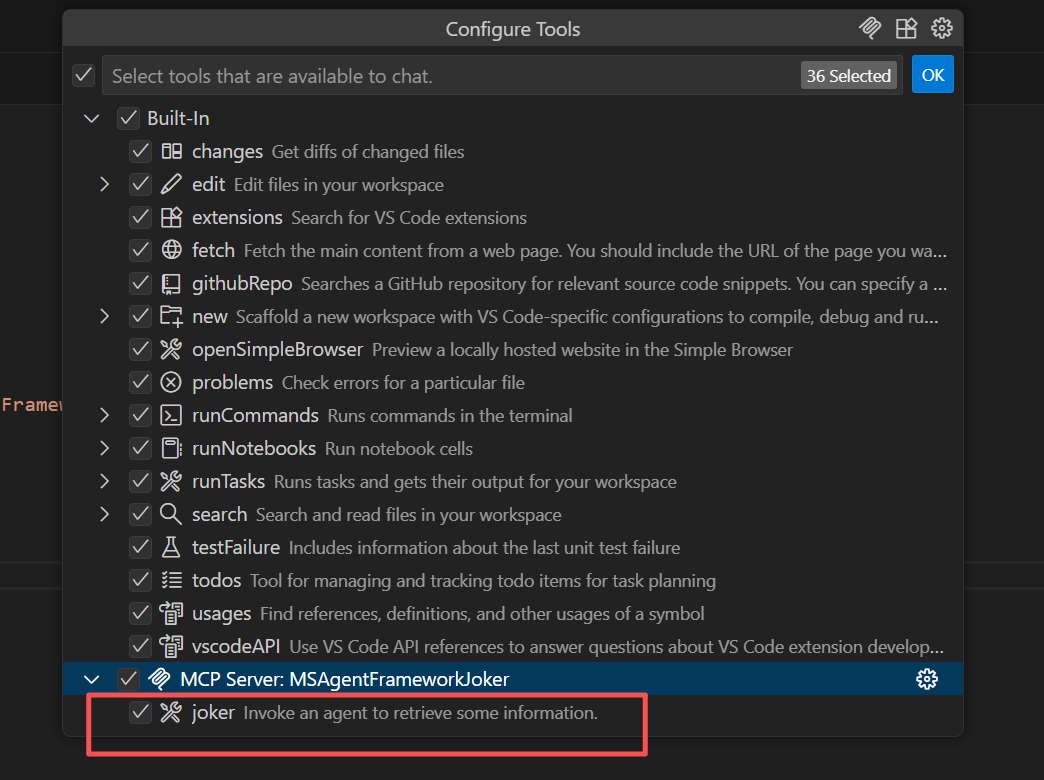
选择它,然后发送消息,如“给我讲个笑话”,你的 Agent 就会通过大语言模型生成一个笑话并回复你!总结
通过将 AI Agent 注册为 MCP Server,你可以轻松地将其功能集成到支持该协议的各种工具中。WithStdioServerTransport 使得在本地开发环境中与 VSCode 等编辑器集成变得异常简单,极大地扩展了 Agent 的应用场景。

火山引擎开发者社区是火山引擎打造的AI技术生态平台,聚焦Agent与大模型开发,提供豆包系列模型(图像/视频/视觉)、智能分析与会话工具,并配套评测集、动手实验室及行业案例库。社区通过技术沙龙、挑战赛等活动促进开发者成长,新用户可领50万Tokens权益,助力构建智能应用。
更多推荐

 0
0 0
0- 0


 已为社区贡献74条内容

所有评论(0)